



OGame Planet Finder: The Complete Guide to Coordinates & Farming (2026)
If you've spent any time playing OGame, you already know that location is everything. The position of your planets determines your attack range, your fleetsave efficiency, your trade routes, and ultimately — your survival. That's where the OGame Planet Finder comes in.

OGame Planet Finder: The Ultimate Guide to Scouting the Galaxy
If you've spent any time playing OGame, you already know that location is everything. The position of your planets determines your attack range, your fleetsave efficiency, your trade routes, and ultimately — your survival. That's where the OGame Planet Finder comes in. Whether you're a seasoned veteran hunting for inactive farms or a new player choosing your first colony spots, understanding how to find and evaluate planets is one of the most critical skills in the game.
In this guide, we'll break down everything you need to know about OGame Planet Finder tools: what they do, how they work, what to look for, and how private servers like OGameXL enhance the experience with additional features and a dedicated community.
In this guide
- What Is an OGame Planet Finder?
- How the OGame Galaxy System Works
- Planet Size: Why It Matters More Than You Think
- How to Use a Planet Finder for Farming Inactives
- Key Filters Every OGame Planet Finder Should Have
- OGame Planet Finder on Private Servers: OGameXL
- Advanced Planet Scouting Strategies
- Common Mistakes When Using Planet Finders
- OGame Planet Finder Tools: Third-Party Options
- The Statistics Page: Your Built-In Planet Finder
What Is an OGame Planet Finder?
An OGame Planet Finder is a tool — either built into the game interface or provided as a third-party utility — that lets you search, filter, and analyze planet coordinates across the galaxy. Instead of manually clicking through hundreds of systems, a Planet Finder lets you:
- Search for inactive players whose planets can be farmed
- Find optimal colonization spots based on planet size and position
- Identify strong or weak neighbors in your galaxy
- Plan attack routes and calculate fleet travel times
- Track player activity status (active, inactive, vacation, banned)
At its core, the tool reads from the galaxy overview data and presents it in a searchable, filterable format that saves enormous amounts of time.
How the OGame Galaxy System Works
Before diving into how planet finders work, it's important to understand the coordinate structure of OGame.
Every position in OGame is defined by three numbers: [Galaxy : Solar System : Position]
- Galaxy — ranges from 1 to 9 in the official game
- Solar System — ranges from 1 to 499
- Position — ranges from 1 to 15
Each solar system has up to 15 planet slots plus a debris field and moon possibility for each. Not all slots are occupied — in fact, in most universes, the majority of slots are empty. The planet finder helps you navigate this massive space efficiently.
What Does Planet Position Mean?
Planet position within a solar system significantly affects gameplay:
- Positions 1–3: Close to the sun — good for solar energy production, lower metal/crystal output
- Positions 4–6: Balanced resource production
- Positions 7–9: Mid-range, often the "sweet spot" for colonization
- Positions 10–12: Farther out — good crystal and deuterium production
- Positions 13–15: Cold, outer planets — excellent deuterium output, largest potential planet sizes
Planet size at each position is random within a range determined by the position. Positions 6–10 tend to give larger planets on average. This is a critical factor when choosing colonization targets.
Planet Size: Why It Matters More Than You Think
Planet size (measured in fields) directly determines how many buildings you can construct. Each building takes up one field. A planet with 163 fields can host more infrastructure than one with 120 fields — which translates directly into production capacity, fleet size, and defensive capability.
Here's a rough guide to what different planet sizes mean in practice:
| Fields | Assessment | Best Use |
|---|---|---|
| Under 100 | Poor | Abandon or use as a fuel depot |
| 100–140 | Average | Secondary colony, fleet save point |
| 141–170 | Good | Production colony or military base |
| 171–200 | Excellent | Main planet or top-tier colony |
| 200+ | Exceptional | Keep and max out immediately |
When using a planet finder to scout colonization spots, always filter for larger field counts wherever possible. A few extra fields might not seem important early on, but at higher levels, every single field counts.
How to Use a Planet Finder for Farming Inactives
One of the most important use cases for a Planet Finder is identifying inactive players — players who haven't logged in recently and whose planets are essentially free resource depots.
In OGame, inactive players are marked with a gray "i" icon on the galaxy view. Their planets accumulate resources over time with no defense being built or fleets defending. For active farmers, these are prime targets.
Step-by-Step: Farming with a Planet Finder
- Open the Galaxy or Planet Finder tool — either the in-game galaxy view or a dedicated finder utility
- Filter by player status — select "Inactive" to narrow results
- Check points and ranking — lower-ranked inactives typically have lower defenses
- Look for "long inactive" — players inactive for 28+ days (marked with "I" capital) have no activity at all
- Calculate travel time — closer inactives mean faster returns and lower deuterium costs
- Send a probe first — always espionage before sending a real attack
- Set up recurring attacks — once you find a productive farm, raid it on a schedule
Pro tip: Sort inactives by distance from your planet. The closest ones offer the best return per deuterium spent, especially in the early and mid-game.
Key Filters Every OGame Planet Finder Should Have
A well-designed Planet Finder isn't just a list of coordinates — it's a powerful filtering and sorting engine. Here are the essential filters to look for:
Player Status Filters
- Active — online recently, be cautious
- Inactive (i) — no login for 7+ days
- Long Inactive (I) — no login for 28+ days
- Vacation Mode (v) — protected, cannot be attacked
- Banned (b) — moderator action, planet still exists
- Noob Protection — new players with significantly lower points than you
- Strong Player — significantly more points than you, avoid provoking
Location Filters
- Galaxy range (1–9)
- Solar system range (1–499)
- Position within system (1–15)
- Distance from a reference point
Player Rank / Points Filters
- Minimum and maximum points
- Alliance membership
- Rank in universe
OGame Planet Finder on Private Servers: OGameXL
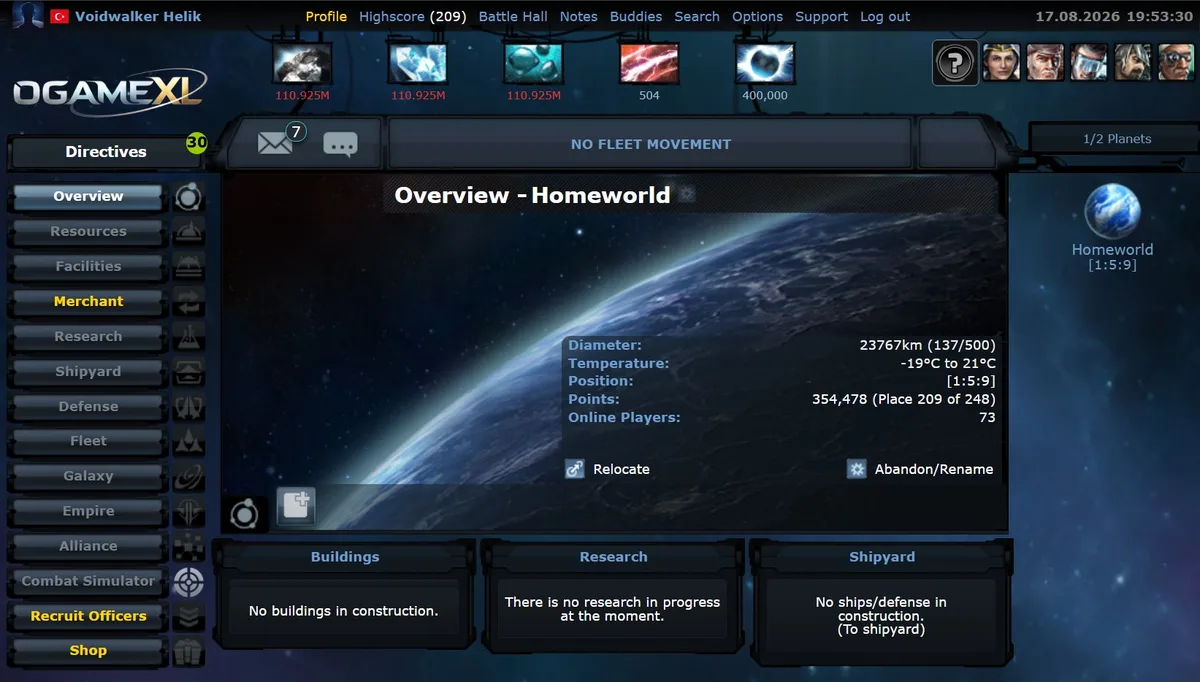
While the official OGame servers provide a basic galaxy view, many players prefer private servers that offer enhanced tools, better performance, and a more engaged community. OGameXL is one such server, built on a modern PHP stack with a range of features designed to improve the classic OGame experience.
What OGameXL Offers
On OGameXL, the galaxy and planet browsing experience is significantly enhanced compared to vanilla OGame:
- Enhanced Galaxy View — player status indicators are displayed clearly, including inactive, vacation, ban, noob, and strong player badges directly in the galaxy table
- Flag Display — player nationality flags are shown for a more personalized community feel
- Debris Field Tooltips — hover over any debris field to instantly see metal and crystal amounts without clicking through
- Phalanx Visibility Logic — accurate phalanx range calculation so you know which systems you can scan
- Coordinate Links in Fleet Tables — planet names and coordinates are displayed as direct links in fleet dispatch screens, making navigation faster
- Real-Time Statistics — the statistics page shows live rankings with player status indicators, so you can spot inactive high-rankers at a glance
Why Play on a Private Server?
Private servers like OGameXL offer several advantages over the official servers:
- Custom Speed Settings — faster universe speeds mean less waiting, more action
- Active Development — features and bug fixes are applied rapidly by a dedicated team
- Community Focus — smaller, more tight-knit player base with better social dynamics
- Unique Features — tournament systems, galactic events, auction houses, and premium bonuses not found in vanilla OGame
- No Pay-to-Win Pressure — many private servers balance Dark Matter (premium currency) more fairly
Advanced Planet Scouting Strategies
1. The "Ring" Strategy
When colonizing, try to place planets in a ring pattern around your home system — a few systems to the left, a few to the right, and ideally one or two in neighboring galaxies if game speed allows. This reduces your fleet travel times dramatically and creates a defensive perimeter.
2. Deuterium Planet Hunting
If you plan to run a fleet-heavy account, you'll burn enormous amounts of deuterium. Use the planet finder to locate available slots at positions 13–15 in nearby systems. A position 14 planet can produce 3x more deuterium than a position 6 planet — the difference becomes enormous at higher mine levels.
3. Alliance Clustering
Coordinate with your alliance using planet finder data. When multiple alliance members colonize in the same region, you create mutual defense zones and shared farm routes. Use the finder to identify open slots near alliance partners and fill them strategically.
4. The "Empty System" Technique
Colonizing in a completely empty solar system gives you a huge psychological and practical advantage. You have no nearby neighbors to probe you, no one watching your fleet movements, and you can use the system's debris field slots freely. Use the planet finder to locate systems with zero or one existing players.
5. Moon Probability Hunting
Once you have planets established, look for heavily trafficked systems where battles occur frequently. These systems generate large debris fields which, if recycled properly, can fund moon creation attempts. Planet finders with debris field data help you identify these hotspots.
Common Mistakes When Using Planet Finders
Even experienced players make mistakes when scouting. Here are the most common pitfalls to avoid:
- Attacking without probing first — never assume an inactive planet is undefended. Always send espionage probes before attacking
- Ignoring travel time — a great inactive farm 200 systems away might not be worth the deuterium cost at low fleet speed
- Overlooking alliances — that inactive player might be in a powerful alliance that will retaliate on their behalf
- Choosing bad colonization positions — don't colonize the first open slot you find. Be patient and wait for the right position and size
- Farming too aggressively near active players — if you consistently raid someone's neighbor, that neighbor may target you in retaliation
- Not tracking when inactives come back — long-inactive players sometimes return and immediately build defenses. A raid that was profitable last week might walk into a missile battery this week
OGame Planet Finder Tools: Third-Party Options
Over the years, the OGame community has developed a range of external tools to complement the in-game galaxy view. While these vary in quality and maintenance status, the most useful types include:
- Universe Spreadsheets — community-maintained Google Sheets that track inactive players, alliance territories, and high-value targets
- Browser Extensions — some extensions enhance the galaxy view with additional information overlays
- Dedicated Web Tools — standalone websites that pull public universe data and provide advanced filtering
- Discord Bots — some alliance Discord servers run bots that monitor galaxy data and alert members to high-value inactives
Always check that any third-party tool complies with the rules of your server before using it. On official servers, some automation tools violate the Terms of Service. On private servers like OGameXL, check with the administration for approved tools.
The Statistics Page: Your Built-In Planet Finder
Don't overlook the in-game statistics page as a planet finding tool. Sorted properly, it gives you a wealth of information:
- Filter by player status — inactive players visible at a glance
- Sort by points to find weak, easy-to-farm inactives
- Cross-reference with the galaxy view to find their planet coordinates
- Track alliance affiliations to avoid political incidents
On OGameXL, the statistics page includes visual player status indicators and flag icons, making it significantly easier to scan for targets at a glance compared to the standard interface.
Related Guides
Frequently Asked Questions
What's Your Reaction?
 Like
0
Like
0
 Dislike
0
Dislike
0
 Love
0
Love
0
 Funny
0
Funny
0
 Wow
0
Wow
0
 Sad
0
Sad
0
 Angry
0
Angry
0

Playing and helping run OGame.life since its early seasons. Every build order, fleet composition, and expedition setup covered in these guides has been tested first-hand on our own servers before being written up.












Comments (0)